To translate video to Spanish, transcribe the English audio, translate the transcript into the Spanish variety your audience speaks, time it as subtitles within reading-speed limits, then publish an .srt file or a dubbed Spanish audio track.
Quick steps
- Export a timecoded English transcript from your editing software or a transcription tool.
- Decide your output: subtitles, SDH captions, a dubbed audio track — and lock in Spain Spanish (es-ES) or Latin American Spanish (es-419).
- Translate the transcript, then cut each line until it fits on screen comfortably.
- Save a plain UTF-8
.srtfile and upload it, or generate/record a Spanish voice track and mix it against the original. - Watch the whole thing in Spanish, on a phone, before you publish anything.
That sequence matters. Teams that translate first and time later end up rewriting half the script, because Spanish runs longer than English and the lines stop fitting.
Budget roughly two to three hours of focused work for a ten-minute talking-head video the first time you do it. The second video goes faster, since your glossary and your line-breaking habits carry over.
Subtitles, captions, or dubbing: which kind of Spanish video translation do you need?
The three outputs are not interchangeable, and they cost very different amounts of effort.
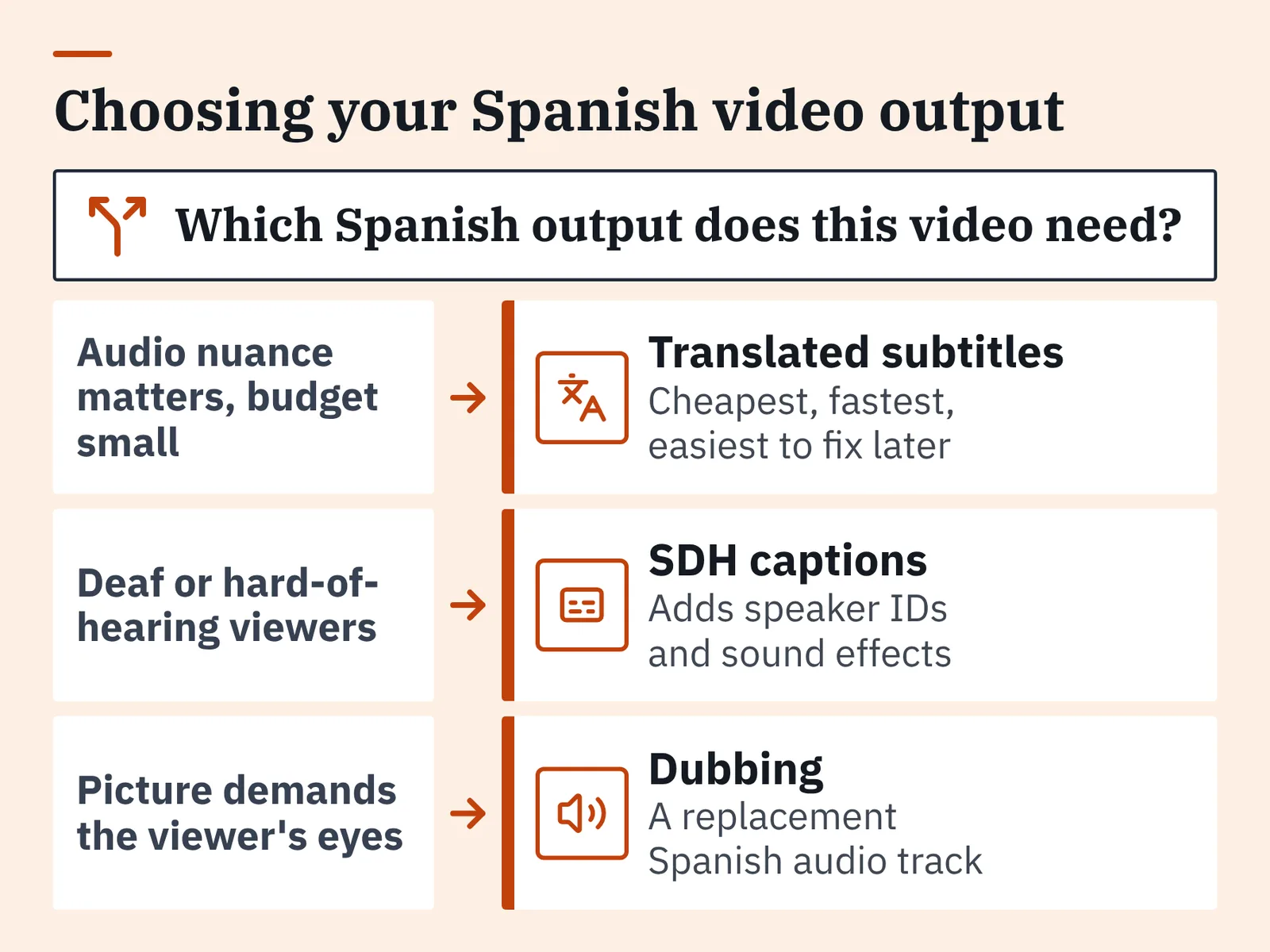
- Translated subtitles — Spanish text of the spoken dialogue, for viewers who can hear the English. Cheapest, fastest, easiest to fix after publishing.
- SDH captions — Spanish dialogue plus speaker IDs and relevant sound effects, for deaf and hard-of-hearing viewers. Same workflow as subtitles, with extra bracketed cues.
- Dubbing — a replacement Spanish audio track, recorded by a voice actor or generated by a text-to-speech system. Best for tutorials where viewers watch hands, screens, or faces and can’t read at the same time.
Pick dubbing when the picture demands the viewer’s eyes. Pick subtitles when the audio carries nuance you don’t want to lose, or when your budget is small and the video may be re-cut later.
Platform defaults are now part of this decision. According to Slator, YouTube’s AI dubbing expanded from a rollout to hundreds of thousands of eligible channels in December 2024 to availability for 80 million creators in June 2025, which means a Spanish track may appear on your video whether or not you commissioned one.
Choose your variety at this stage too, not later. If your audience is spread across Mexico, Colombia, and Argentina, a neutral register is usually safer — the trade-offs are laid out in this guide to choosing es-419 for Latin American audiences.
Step 1 — Transcribe the English audio and clean up the transcript
Time: 20–40 minutes for a ten-minute video. You need: the final cut’s audio, a transcription tool, and a plain-text editor.
Transcribe from the locked edit, never from a rough cut. Every re-edit after transcription invalidates your timecodes, and re-syncing subtitles is slower than transcribing again.
Machine transcription is cheap at this scale. According to CloudZero’s breakdown of OpenAI API pricing, Whisper is billed at $0.006 per minute of audio, roughly $0.36 per hour.
The cleanup pass is where the quality comes from. Fix proper nouns and product names, spell out numbers the way you want them spoken, delete filler like "um" and "you know," and mark speaker changes with a short tag.
Keep the timecodes attached to each chunk while you clean. A transcript with timings is a draft subtitle file; a transcript without them is a document you’ll have to re-sync by hand.
Step 2 — Translate the transcript into the right Spanish
Time: 45–90 minutes for a ten-minute video, plus a review pass. You need: your cleaned transcript, a glossary, and a bilingual reviewer if the video is public-facing.
Settle three questions before you translate a single line. Formal or informal address (usted vs. tú), plural you (ustedes everywhere vs. vosotros in Spain), and your regional vocabulary set — carro, coche, or auto, and computadora or ordenador.
Build a short glossary first: product names, job titles, feature names, and anything you refuse to translate. A twelve-row glossary prevents the most common reviewer complaint, which is the same term rendered three different ways across one video.
Machine translation is a reasonable first draft for instructional content and a poor one for jokes, idioms, and sales copy. Run a human pass over every line, and check dictionary output against real usage — a comparison of Linguee against other English-Spanish tools shows how differently these sources handle context.
Regional slang deserves its own check if you’re targeting one country. Colombian audiences, for instance, flag register mismatches fast, and this walkthrough of English into Colombian Spanish without the misfires covers the specific traps.
Step 3 — Build a Spanish subtitle file that respects line length and reading speed
Time: 30–60 minutes. You need: a subtitle editor that shows characters per line and characters per second.
Spanish translations typically run longer than the English source. That expansion is why timing has to be an editing pass, not an afterthought.
Netflix’s Spanish (Latin America & Spain) Timed Text Style Guide caps subtitle lines at 42 characters per line. Netflix’s Spanish SDH reading-speed limits are up to 17 characters per second for adult programs and up to 13 characters per second for children’s programs.
Use those as your ceiling even if you publish on YouTube. When a line is too long, cut words rather than shrinking the font or extending the cue past the shot change.
Practical line-breaking rules that keep subtitles readable:
- Two lines maximum per cue, with the shorter line on top when the split is close.
- Never break between an article and its noun, or between a preposition and what follows it.
- Break at commas, conjunctions, and clause boundaries instead of mid-phrase.
- Keep cues on screen long enough to read twice at a glance, and never cross a hard cut.
Step 4 — Publish Spanish subtitles or add a dubbed Spanish audio track
Time: 15 minutes for subtitles, 1–3 hours for a dub. You need: your finished subtitle file, or a Spanish voice and a mixing session.
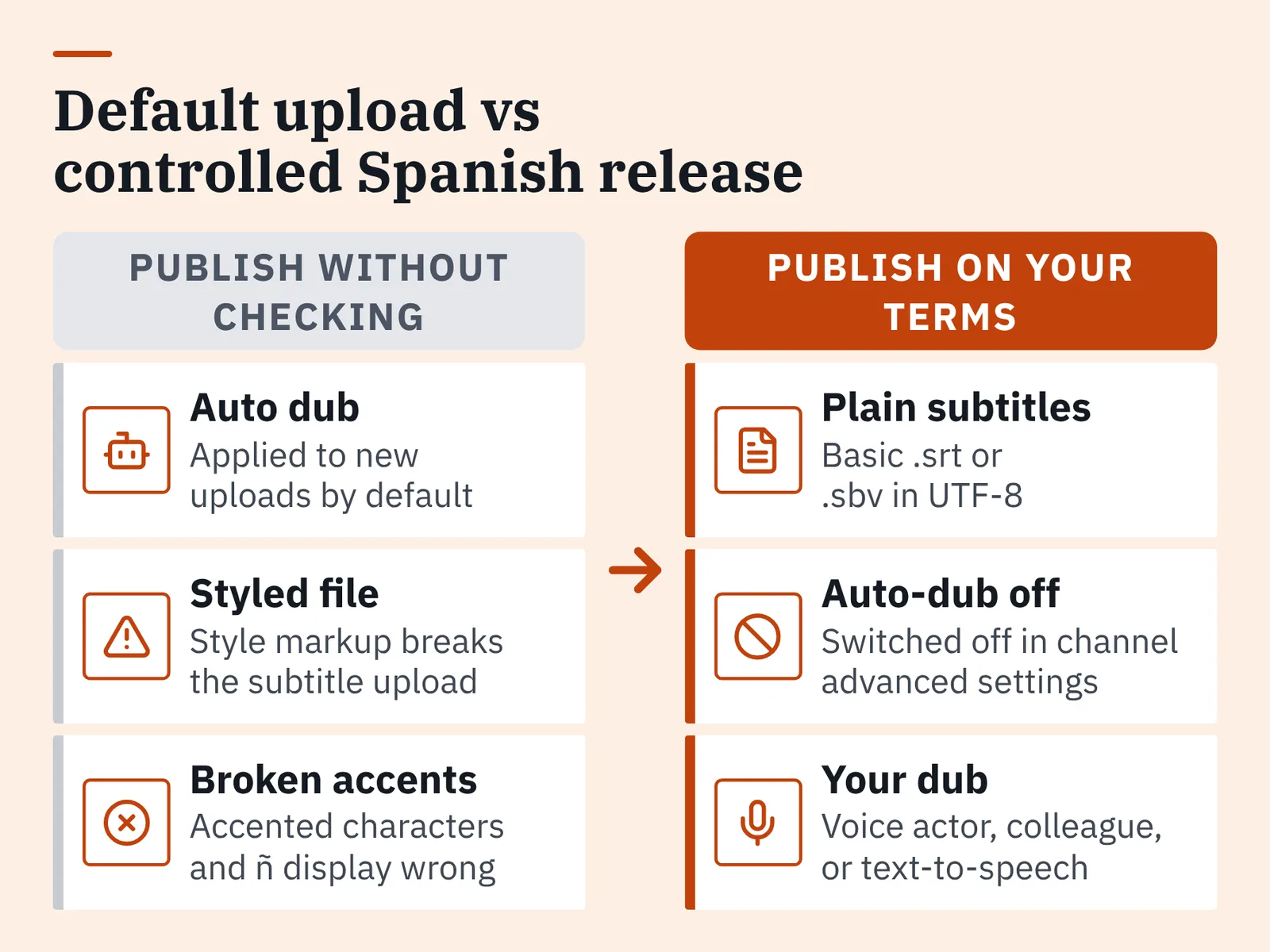
File format is where uploads break. According to YouTube Help, Spanish subtitle uploads must be basic SubRip (.srt) or SubViewer (.sbv) files without style markup, saved as plain UTF-8 so accented characters and ñ display correctly.
Check the platform’s dubbing defaults before you publish. YouTube Help states that automatic dubbing is applied to new uploads by default, and creators who don’t want an auto-generated Spanish track must turn it off in YouTube Studio’s channel advanced settings.
For a dub you control, you have three routes: hire a Spanish voice actor, record a bilingual colleague, or generate the track with text-to-speech. One option in that last category is DeepBrain AI’s AI Studios platform for avatar video and video translation, which offers text-to-speech voiceovers in 150+ languages and accents on paid plans, more than 1,000 AI voices, and voice cloning from a short recording.
Its limits are plan-based rather than unlimited. AI Studios includes 120 minutes of AI dubbing per month on the Personal plan and 240 minutes on the Team plan, and when those included minutes run out, extra dubbing usage is deducted from generative credits. If you only need subtitles on a single explainer video, a free subtitle editor plus a direct upload is the lighter path.
Step 5 — Quality-check the Spanish version against the picture
Time: one full viewing plus 20 minutes of fixes. You need: a phone, headphones, and a reviewer who speaks the target variety.
Watch the video end to end with the Spanish track active. Reading on a 6-inch screen exposes problems that look fine in a subtitle editor on a desktop monitor.
Reading speed is tighter in Spanish than in English for kids’ content: Netflix’s English subtitle templates allow up to 15 characters per second for children’s programs, while its Spanish guide allows up to 13. If you’re captioning anything aimed at children — see this home plan for children’s Spanish learning for how young viewers actually process input — use the stricter figure.
Check these against the picture, not against the transcript:
- Subtitles never cover burned-in English text, lower thirds, or on-screen numbers.
- Accented characters and ñ render correctly on mobile and on TV apps.
- For dubs, Spanish audio starts and ends inside the same shot as the original line.
- Background music and effects still sit under the new voice at a comfortable level.
Pre-publish checklist for your Spanish subtitles or dub
Run this before the video goes live. Each item takes under a minute to verify.
- ☐ Variety locked: es-ES or es-419, with tú/usted and ustedes/vosotros consistent throughout.
- ☐ Glossary terms match across every cue — no term rendered two ways.
- ☐ No line exceeds 42 characters, the cap in Netflix’s Spanish timed text style guide.
- ☐ Reading speed stays within 17 characters per second for adult content, 13 for children’s.
- ☐ File saved as plain UTF-8
.srtor.sbvwith no style markup, per YouTube Help. - ☐ Accents and ñ verified on a phone, not just in the editor.
- ☐ Automatic dubbing setting checked in YouTube Studio’s channel advanced settings.
- ☐ Subtitles cleared of on-screen text and logos in every shot.
- ☐ A native speaker of the target variety has watched the full video.
Common mistakes when translating a video into Spanish
The most frequent failure is translating word for word and keeping the English timings. Spanish sentences come out longer, cues overflow to three lines, and viewers pause the video to finish reading — avoid it by treating translation and timing as one combined pass, cutting words until each cue fits.
Encoding is the second. A file saved as ANSI instead of UTF-8 turns año into mojibake on every platform, and the only fix is re-exporting.
Mixing varieties inside one track reads as careless. Vosotros in a Latin American dub, or a Spain-only vocabulary word in a Mexican subtitle file, pulls attention away from your content — and regional detail matters even for short phrases, as this breakdown of English into Dominican Spanish without slips shows.
Burning subtitles into the picture is the mistake that costs the most later. Hardcoded text can’t be corrected, can’t be turned off, and can’t be replaced when you add a third language. Keep subtitles as a separate file for as long as the platform allows it.
Leaving platform defaults untouched closes the list. Auto-generated dubs can ship with pronunciation errors in your brand name, and you won’t know unless you check the Spanish track yourself.
Frequently asked questions
Can I just use YouTube’s automatic Spanish dubbing?
You can, and according to YouTube Help it is applied to new uploads by default, with opt-out living in YouTube Studio’s channel advanced settings. Review the generated track before relying on it, since brand names and technical terms are often mispronounced.
Should I pick Spain Spanish or Latin American Spanish?
Match your largest audience. Spain Spanish uses vosotros and vocabulary like coche and ordenador; Latin American Spanish uses ustedes and carro or auto. If viewers span several countries, a neutral es-419 register with a consistent glossary annoys the fewest people.
How long should each Spanish subtitle stay on screen?
Long enough to stay within reading-speed limits. Netflix’s Spanish timed text style guide allows up to 17 characters per second for adult programs and up to 13 for children’s programs, so a 40-character cue in an adult video needs well over two seconds.
What file format does a Spanish subtitle file need?
YouTube Help states that subtitle uploads must be basic SubRip (.srt) or SubViewer (.sbv) files without style markup, saved as plain UTF-8. The encoding is the part people skip, and it is exactly what breaks accented vowels and ñ.
Is it cheaper to subtitle or to dub a video in Spanish?
Subtitling is cheaper, because transcription costs little — CloudZero reports Whisper is billed at $0.006 per minute of audio — and the rest is translation and timing. Dubbing adds voice talent or text-to-speech minutes, mixing, and a sync pass against the picture.
Sources
- Use automatic dubbing – YouTube Help
- YouTube to Launch Real-Time AI Dubbing for Livestreams in Early 2027 — Slator
- Supported subtitle and closed caption files – YouTube Help
- Spanish (Latin America & Spain) Timed Text Style Guide — Netflix Partner Help Center
- Timed Text Style Guide: Subtitle Templates — Netflix Partner Help Center
- OpenAI API pricing — CloudZero
AI tools helped write this guide. The English to Spanish Editorial Team published it after checking every figure against the sources linked above.